
How to Build AI Agents with n8n in 2026
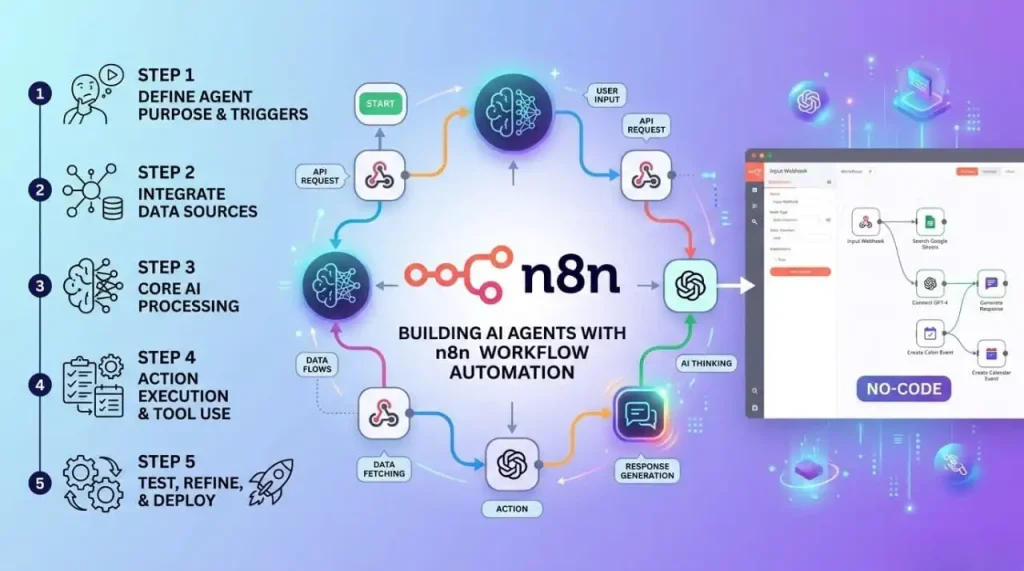
Learning how to build AI agents with n8n in 2026 is one of the highest-leverage skills for automation professionals. n8n’s AI Agent node lets you create autonomous agents that plan, use tools, and complete multi-step tasks — all without writing a single line of code. This guide takes you from zero to a working AI agent in under 30 minutes.
What Is an AI Agent in n8n?
An AI agent in n8n is a workflow where the AI model decides which tools to use and in what order to complete a goal. Unlike a standard workflow (fixed sequence), an agent reasons about the task and adapts dynamically. In n8n, this is powered by the AI Agent node, which wraps an LLM (Claude, GPT-4o, Gemini) with a set of tools (web search, calculator, email, database, custom APIs) and lets the model orchestrate them autonomously.
What You Need Before Starting
- n8n installed (self-hosted via Docker or n8n.cloud account)
- An OpenAI API key (for GPT-4o) — or Anthropic key for Claude
- 30 minutes of time
Step 1: Set Up Your n8n AI Agent Node
In n8n, create a new workflow and add the AI Agent node (search “AI Agent” in the node panel). This is the brain of your agent. Configure it with:
- Chat Model: Connect an OpenAI or Anthropic credential. Select GPT-4o or Claude 3.5 Sonnet.
- System Prompt: Define the agent’s role and behavior. Example: “You are a market research specialist. When given a topic, search the web, find relevant data, and produce a structured report.”
- Memory: Add a Window Buffer Memory node to give the agent conversation history.
Step 2: Add Tools to Your Agent
Tools are what give your agent superpowers. In n8n, connect tool nodes to the AI Agent’s “Tools” input:
| Tool node | What it does | Use case |
|---|---|---|
| SerpAPI / Brave Search | Real-time web search | Research, competitor monitoring |
| Calculator | Mathematical operations | Data analysis, pricing calculations |
| HTTP Request | Call any external API | CRM updates, custom integrations |
| Code | Run JavaScript/Python | Data processing, file manipulation |
| Gmail / Outlook | Send/read emails | Communication automation |
| Google Sheets | Read/write spreadsheet data | Reporting, data management |
| Postgres / MySQL | Query databases | Business intelligence |
| Vector Store | Semantic search in documents | RAG, knowledge base |
Step 3: Build a Real Example — Research Agent
Let’s build a practical agent that researches a topic and sends a report by email:
- Trigger: Add a Webhook node or Chat Trigger (to interact via n8n’s chat interface)
- AI Agent node: Configure with GPT-4o and this system prompt: “You are a research assistant. Given a topic, use web search to find current information, synthesize the findings into a structured report with: executive summary, key findings (5 bullet points), and sources. Always search at least 3 times with different query angles.”
- Tools: Connect SerpAPI (web search) + Calculator + HTTP Request nodes
- Output: Connect a Gmail node to send the report
- Activate: Toggle the workflow on
Total build time: ~20 minutes. The agent will now autonomously search the web multiple times, synthesize findings, and email you a report whenever triggered.
Step 4: Add Memory for Multi-Turn Conversations
For agents that need to remember previous interactions, add a Window Buffer Memory node connected to the AI Agent’s Memory input. Configure the window size (number of past messages to retain — 10 is a good default). This enables your agent to maintain context across a conversation session, like a real assistant that remembers what you discussed earlier.
Step 5: Use Sub-Agents for Complex Tasks
For sophisticated workflows, use n8n’s Call n8n Workflow tool to create sub-agents. Your main agent can call specialized sub-workflows as tools:
- Main agent receives a complex task
- Calls “Research Sub-Agent” for web research
- Calls “Writing Sub-Agent” to draft content
- Calls “SEO Sub-Agent” to optimize the output
This mirrors the CrewAI multi-agent pattern but entirely within n8n’s visual interface.
5 AI Agent Ideas to Build This Week
- Lead qualifier: Takes a prospect’s URL, researches the company, scores fit, and drafts personalized outreach
- Content researcher: Given a keyword, finds the top 10 ranking articles, extracts key points, and produces a content brief
- Customer support agent: Reads incoming support emails, searches your knowledge base, and drafts personalized replies
- Competitor monitor: Daily scans competitors for new features, pricing changes, and blog posts — summarizes in Slack
- Invoice processor: Reads email attachments, extracts invoice data, updates your accounting spreadsheet, and sends payment confirmation
Common Mistakes When Building n8n AI Agents
- Too vague system prompt: “Be helpful” produces random results. Be specific about role, output format, and expected behavior.
- Too many tools: Agents with 10+ tools get confused. Start with 2-3 focused tools and add more only when needed.
- No error handling: Add an Error Trigger workflow to catch and log agent failures — especially important for production agents.
- Infinite loops: Set a maximum iteration limit in the AI Agent node (default 10) to prevent runaway API costs.
FAQ — Building AI Agents with n8n 2026
Do I need coding skills to build n8n AI agents?
No. The AI Agent node and all tool nodes are fully visual. You only need code if you want to write custom JavaScript/Python logic inside a Code node.
Which LLM works best for n8n AI agents?
GPT-4o and Claude 3.5 Sonnet perform best for most agent tasks. Claude tends to follow system prompts more reliably; GPT-4o is faster. Both are supported natively in n8n.
How much does running an n8n AI agent cost?
n8n itself is free (self-hosted). API costs depend on usage — a research agent running 5-10 searches typically costs $0.05-0.20 per execution with GPT-4o.
Can n8n agents run autonomously without human input?
Yes. Trigger your agent with a Schedule node to run automatically at set intervals. Add a Slack or email notification node at the end to report results.