

Workflows make vs zapier — Complete ai automation workflows is one of the most important topics in AI and automation in 2026. AI automation workflows transform how teams operate. Instead of ChatGPT conversations that go nowhere, workflows connect AI tools to your existing systems—CRM, email, project management, content calendars. A lead arrives in your CRM at 3 PM. Instantly, an AI-powered workflow generates a personalized welcome email, adds the lead to a nurture sequence, creates a task for your sales team, and logs the interaction automatically. No manual effort. No context switching. One workflow handles all of it.
This pillar covers workflow architecture, the tools that enable it, real implementation patterns, and ROI metrics so you understand why automation workflows matter more than one-off AI conversations. Whether you’re a freelancer stacking tools to scale solo operations or an agency automating client-facing processes, this guide walks you through building workflows that work while you sleep.
Understanding Workflow Architecture – From Conversations to Automation
Most teams use AI wrong. They ask ChatGPT a question, get an answer, copy-paste it somewhere else, and move on. That’s not automation—that’s using AI as a writing tool. Real automation happens when AI becomes part of your operational infrastructure.
A workflow is a sequence of actions triggered by an event. Event: “New email arrives.” Actions: “Summarize email → Add key information to CRM → Route to correct team member → Send acknowledgment.” This happens instantly, every time, without human intervention.
The architecture has three layers:
Layer 1 : Trigger (Event)
Something happens that starts the workflow. Examples: new lead in CRM, new email with keyword, appointment scheduled, content published, support ticket received. The trigger is your signal that action is needed.
Layer 2 : AI Processing
The AI performs intelligent work on the trigger data. Examples: analyze sentiment, generate response, extract information, classify urgency, summarize content. The AI step is where intelligence enters the process—the workflow becomes smart instead of just automated.
Layer 3 : Actions (Outcomes)
Based on AI output, the workflow performs actions in connected systems. Examples: send email, create task, add record to database, post to Slack, update spreadsheet. These actions implement the AI’s decisions across your tech stack.
Example workflow:
textTRIGGER: New support ticket arrives
  ↓
AI STEP: Analyze ticket for urgency and category
  ↓
ACTION 1: If urgent → Route to senior support + send SMS alert
ACTION 2: If routine → Route to junior support + send email acknowledgment
ACTION 3: In all cases → Log in analytics for reporting
This workflow runs identically every time. A support ticket that would take 8 minutes to triage manually (read, categorize, route, acknowledge) now happens in 8 seconds. Scale that across 50 daily tickets and you’ve freed 6+ hours weekly of pure overhead elimination.
The Three Workflow Platforms That Matter
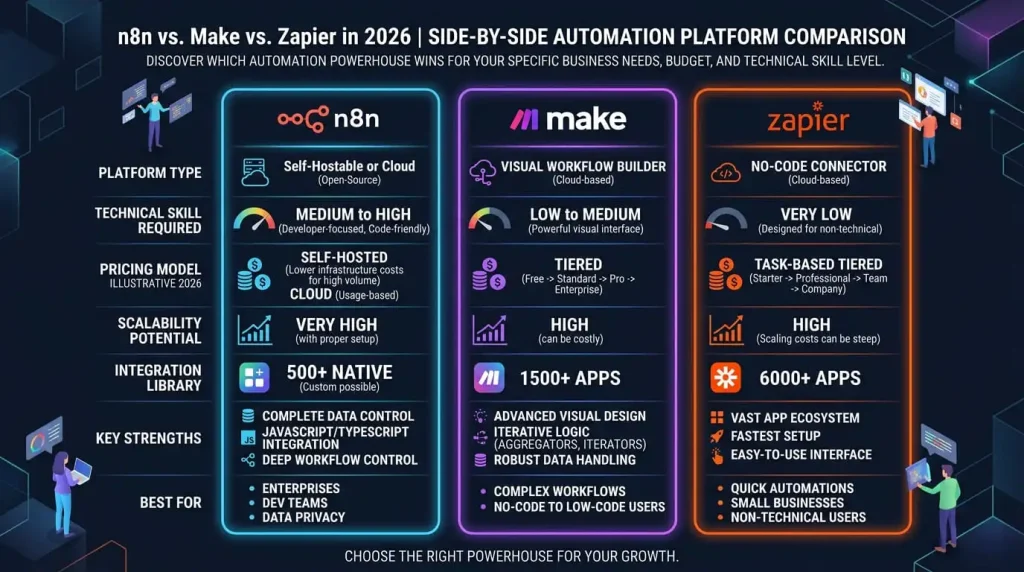
Three platforms dominate workflow automation: Zapier, Make (formerly Integromat), and native automation (built into individual tools). Each has different strengths.
Zapier : The Most User-Friendly
Zapier connects 7,000+ apps with simple trigger-action logic. Setup takes minutes—no code required. You select a trigger (e.g., “new Gmail email”), a Zapier function (optional processing), and an action (e.g., “add to Google Sheets”).
Zapier’s strength: simplicity. Your marketing manager without technical skills can build a workflow in 20 minutes. Zapier’s weakness: pricing scales with usage (tasks cost money after free tier limit).
Cost: Free tier (100 tasks/month), paid tiers from $19.99/month (750 tasks) to $599/month (unlimited).
Make : The Power User Platform
Make is more flexible and complex than Zapier. It allows conditional logic, multiple processing steps, and error handling. If your workflow needs intelligence beyond “if this then that,” Make handles it better.
Make’s strength: power and cost efficiency. You pay per execution, but the pricing model is transparent. Make’s weakness: steeper learning curve, interface feels less polished than Zapier.
Cost: Free tier (1,000 operations/month), paid tiers from $10/month (10,000 operations) to $299/month (1M operations). Each “operation” is one execution of the workflow.
Native Automation : HubSpot, Slack, Zapier Within Tools
Many platforms include built-in automation. HubSpot has workflows, Slack has workflow builder, Google Sheets has automation. These native options are often free or included with your subscription.
Native automation’s strength: no extra tool, no extra cost. Native automation’s weakness: less flexible, limited integrations compared to standalone platforms.
Five Real Workflows That Save Time
Workflow 1 : Lead Qualification & Nurturing (Marketing)
Trigger: New lead submits website form
Actions:
- Send instant acknowledgment email (personalized with lead name)
- Score lead in CRM based on company size, industry, budget indicators
- If high-score → Add to VIP nurture sequence, alert sales team immediately
- If medium-score → Add to standard nurture sequence, create calendar task for follow-up in 3 days
- If low-score → Add to general nurture, no immediate action
- Log interaction in analytics for reporting
Result: Your sales team knows which leads matter within seconds. Nurture sequences run automatically. You’ve compressed 15 minutes of manual lead triage into instant automation.
One SaaS company using this workflow reported: lead response time dropped from 6 hours to 30 minutes (they saw alerts immediately). Lead-to-customer conversion increased 18% because hot leads got immediate attention. Lead qualification accuracy improved 40% because AI analysis was consistent, not mood-dependent.
Workflow 2 : Content Publishing & Distribution (Content Marketing)
Trigger: New blog post published in WordPress.
Actions:
- Extract post title, excerpt, featured image, publication date
- Generate social media post variations (Twitter, LinkedIn, Facebook) tailored to each platform
- Schedule posts for optimal posting times (8 AM, 12 PM, 6 PM across time zones)
- Add post to email newsletter (template: title + excerpt + link)
- Schedule newsletter send for next Friday 9 AM
- Log post in content calendar for team visibility
- Create internal Slack notification in #content-team channel
Result: A post published Monday morning automatically appears on social media, gets scheduled for newsletter, and notifies the team. No manual distribution work. Your content reaches more people without additional effort.
One content agency using this workflow published 3x more blog posts monthly (freed copywriter from distribution work). Social media engagement increased 35% because content was posted at optimal times (not whenever someone remembered).
Workflow 3 : Support Ticket Automation (Customer Service)
Trigger: New support ticket received (email or form submission).
Actions:
- Analyze ticket text for sentiment (positive, neutral, negative)
- Categorize issue (billing, technical, feature request, general question)
- Extract key information (customer name, product, specific problem)
- If negative sentiment AND technical → Route to senior support, mark urgent, send SMS to on-call tech lead
- If billing → Auto-reply with “we received your inquiry,” add to billing queue
- If feature request → Log in feature request database for product team to review
- Send auto-acknowledgment email to customer with ticket number and expected response time
- Create internal ticket in your support system with pre-filled information
Result: Support tickets self-organize instantly. Urgent issues surface immediately. Customers get immediate acknowledgment. Your team spends time solving problems instead of triaging them.
One e-commerce brand using this workflow reduced first-response time from 4 hours to 8 minutes (automation). Support team resolution rate improved 25% because urgent issues got senior attention immediately.
Workflow 4 : Email List Segmentation & Personalization (Email Marketing)
Trigger: Subscriber opens email + clicks link.
Actions:
- Record which link was clicked (product interest signal)
- Update subscriber profile with this interest
- Segment subscriber into relevant audience (e.g., “interested in pricing”)
- Queue personalized follow-up email series tailored to that interest
- Update CRM with interaction data
- If click-through rate is high → Flag subscriber as “highly engaged,” increase email frequency
Result: Your email list segments itself based on behavior. Follow-up emails become personalized to actual interests. Engagement improves because people receive relevant messages.
One e-commerce brand using this workflow increased email open rates from 18% to 31% (relevance mattered). Click-through rates doubled because follow-ups addressed actual customer interests, not generic messages.
Workflow 5 : Team Task & Calendar Management (Operations)
Trigger: New project created in project management tool (Asana, Monday, Notion).
Actions:
- Extract project details (name, deadline, team members, budget)
- Generate project summary and break it into weekly milestones
- Create calendar events for each milestone deadline
- Send calendar invites to team members assigned to project
- Create Slack channel for project communication
- Post project summary to Slack channel
- Set up automated weekly status report (every Friday, ask team for updates)
- Create task reminders 3 days before each deadline
Result: New project automatically organizes itself. Team members get calendar alerts automatically. Communication channel exists without someone creating it. Weekly reporting happens without someone nagging for updates.
One agency using this workflow reduced project setup time from 1 hour to 3 minutes (automation). Team coordination improved because deadlines appeared in calendars automatically, not via email where they got lost.
Building Your First Workflow – Step-by-Step
Let’s build a concrete example: “New lead form submission → Generate welcome email → Add to CRM → Alert sales team.”
Step 1 : Choose Your Platform
Start with Zapier because it’s most user-friendly. Sign up at zapier.com (free tier available).
Step 2 : Create New Zap
Click “Create Zap” → Choose trigger app (e.g., Typeform, Google Forms, your website form tool).
Step 3 : Configure Trigger
Select “New Form Submission” as the trigger. Connect your form account. Test the connection.
Step 4 : Add Action Step 1 – Send Email
Add action → Select Gmail or email service → Choose “Send email” action.
Template:
textTo: [Lead Email from form]
Subject: Thanks for your interest, [Lead Name]!
Body: [AI-generated personalized message mentioning lead's company name + industry]
Step 5 : Add Action Step 2 – Add to CRM
Add action → Select CRM (HubSpot, Pipedrive, etc.) → Choose “Create contact” action.
Map form fields to CRM fields: form name → contact name, form email → contact email, etc.
Step 6 : Add Action Step 3 – Send Slack Alert
Add action → Select Slack → Choose “Send message” action.
Template:
textChannel: #sales-leads
Message: 🎯 New lead alert! [Lead Name] from [Company] just submitted the form. Check CRM immediately.
Step 7 : Test the Workflow
Submit a test form entry. Verify: (1) Email sent successfully, (2) Contact created in CRM, (3) Slack alert posted. If all three work, you’re live.
Step 8 : Activate Zap
Turn on the Zap. Every new form submission now triggers this workflow automatically.
Time to build: 25 minutes. Monthly savings: 15 minutes × 20 leads = 5 hours = $250 in labor costs.
Workflow Optimization & Scaling
Your first workflow teaches you patterns. The second and third workflows build faster because you understand the architecture. By workflow five, you’re stacking automations strategically instead of building randomly.
Common Optimization Mistakes:
Mistake 1 : Automating Low-Value Tasks
Teams automate things that take 30 seconds to do manually. Automation setup takes 30 minutes. It’s a bad trade. Prioritize workflows that save 5+ hours monthly.
Mistake 2 : Workflows That Break Silently
A workflow runs perfectly for 2 months, then breaks because you changed a CRM field name or an app updated its API. Best practice: add error handling (send alert if workflow fails), test monthly, document workflows so you remember how they work.
Mistake 3 : Too Many Workflows at Once
Teams launch 10 workflows simultaneously and can’t maintain them. Launch 2-3 workflows, stabilize them, then add more. Quality over quantity.
Scaling Pattern:
- Month 1: Launch 2-3 foundational workflows (lead capture, support triage, content distribution)
- Month 2: Optimize existing workflows based on results, launch 2 more workflows
- Month 3+: Add specialized workflows based on team feedback
One agency scaled from 5 workflows (Month 1) to 22 workflows (Month 6). They didn’t build all 22 at once—they built iteratively, testing and refining as they went. By Month 6, automation freed 40 hours weekly (equivalent to hiring one full-time employee).
Integration Strategies – Connecting Your Tech Stack
Workflows require integrations—connections between your apps. Three strategies exist:
Strategy 1 : Direct Integration (Zapier/Make)
Zapier and Make connect most popular tools. If you use HubSpot, Gmail, Slack, Stripe, and Google Sheets, all connect directly to Zapier. Setup time: hours. Cost: per-task pricing.
Strategy 2 : API Integration (Developers)
If your tool doesn’t connect to Zapier, developers can build custom integrations using API access. This is more flexible but requires technical skills. Setup time: days/weeks. Cost: developer time.
Strategy 3 : Hybrid Approach
Use Zapier for standard connections, hire developer for the one custom integration you need. Most cost-effective for mixed tech stacks.
Real example: A freelancer used Zapier directly (no developer needed). A mid-size agency mixed Zapier + one custom API integration. An enterprise built most workflows through their in-house development team but used Zapier for low-value integrations where cost was negligible.
ROI & Real Outcomes
A digital agency with 12 team members implemented 8 workflows over 3 months:
- Lead capture & nurturing workflow
- Content distribution workflow
- Support ticket automation
- Invoice & payment workflow
- Project setup automation
- Weekly reporting automation
- Social media scheduling
- Email list segmentation
Total setup time: 40 hours (roughly 1 week of work)
Monthly time savings: 120 hours (equivalent to 3 full-time employees’ worth of time)
Workflow ROI: 40 hours investment → 120 hours savings monthly → 3x return in month 1 alone
Cost: $120/month Zapier subscription
Savings: 120 hours × $50/hour = $6,000/month in labor reclaimed
Net monthly benefit: $6,000 – $120 = $5,880 per month in freed capacity
Within 3 months, the agency hired one fewer contractor because existing staff could handle more volume through automation. Year 1 savings: ~$70,000 in prevented contractor costs.
Another example: A solo freelancer implemented 3 workflows (lead capture, content distribution, email segmentation). Monthly time savings: 15 hours. Annual savings: 180 hours = $9,000 in freed billable capacity. Freelancer could take on 2-3 additional clients without additional overhead. Annual revenue increase: $18,000-24,000. Workflow investment: $30 setup cost.
Conclusion
AI automation workflows represent the bridge between “AI as a tool” and “AI as infrastructure.” Conversations with ChatGPT are interesting. Workflows that run while you sleep are transformative.
The barrier isn’t technical—platforms like Zapier make workflow building accessible to non-technical users. The barrier is usually mindset: teams don’t realize which tasks are automatable until they try. Start with one workflow. Prove it works. Build three more. Scale systematically.
By year-end 2025, teams running 10+ integrated workflows will operate 30-40% more efficiently than teams still having conversations with ChatGPT. Automation compounds. The earlier you start, the bigger your operational advantage becomes.
Workflows aren’t optional infrastructure anymore. They’re competitive necessity.